Ever looked at your website traffic and thought, “People are visiting… so why isn’t anyone calling, buying, or filling out my form?” You’re not alone. Most analytics tools tell you how many people showed up and where they came from, but not what they actually did once they landed on your page.
That’s the exact gap Microsoft Clarity fills. It’s a free tool that lets you literally watch how visitors use your website: where they click, how far they scroll, and the precise spot where they get stuck and give up. In this guide, we’ll take you from “what is Clarity?” all the way to advanced, money-making ways to use it.
What Is Microsoft Clarity?
Microsoft Clarity is a free website analytics tool built by Microsoft. It launched in late 2020 and is now used on more than two million websites worldwide. Think of it as a friendly camera for your website: it records how real (anonymous) visitors behave, then turns that behaviour into easy-to-read visuals and reports.
And the best part? It’s genuinely free. There are no traffic limits, no “you’ve used up your sessions” emails, and no premium features locked behind a paywall. Whether your site gets 100 visitors a month or 10 lakh, Clarity keeps working without charging you a single rupee.
At its core, Clarity gives you three things: heatmaps (visual maps of clicks and scrolls), session recordings (replays of real visits), and an insights dashboard (automatic summaries of what’s working and what’s not).
Microsoft Clarity vs Google Analytics: What’s the Difference?
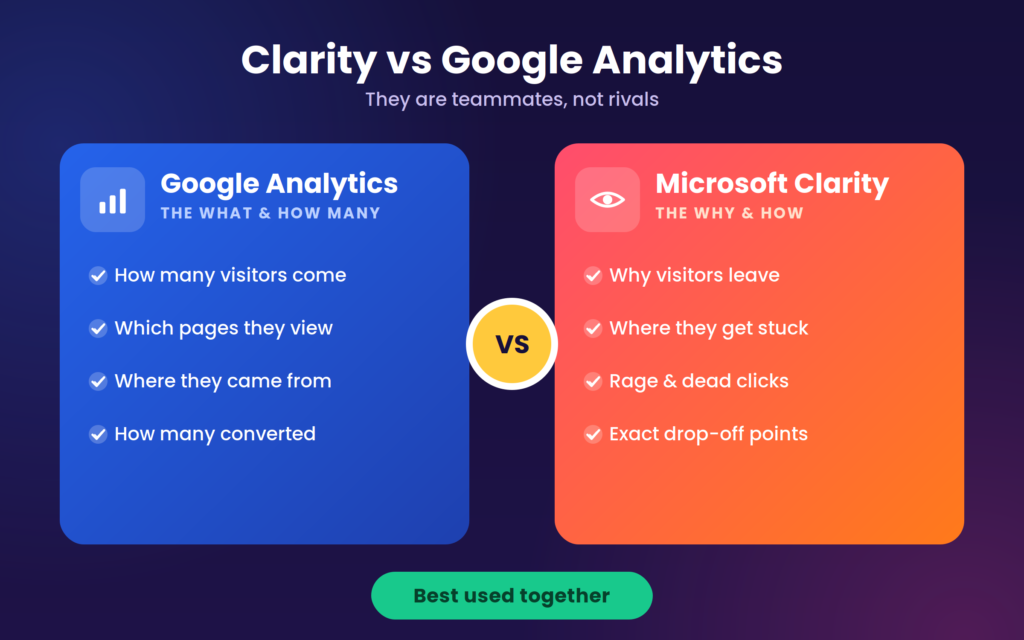
This is the most common question, so let’s clear it up early: Google Analytics (GA4) and Microsoft Clarity are not rivals: they’re teammates.
- Google Analytics answers the “what” and “how many”: how many visitors came, which pages they viewed, where they came from, and how many converted.
- Microsoft Clarity answers the “why” and “how”: why people left a page, how they struggled with a button, and what made them quit halfway through.
GA4 gives you the numbers; Clarity shows you the human story behind those numbers. Used together, you finally get the full picture, and that’s when smart decisions happen. So you don’t have to pick one. Install both.
The Core Features (Explained Simply)
1. Heatmaps
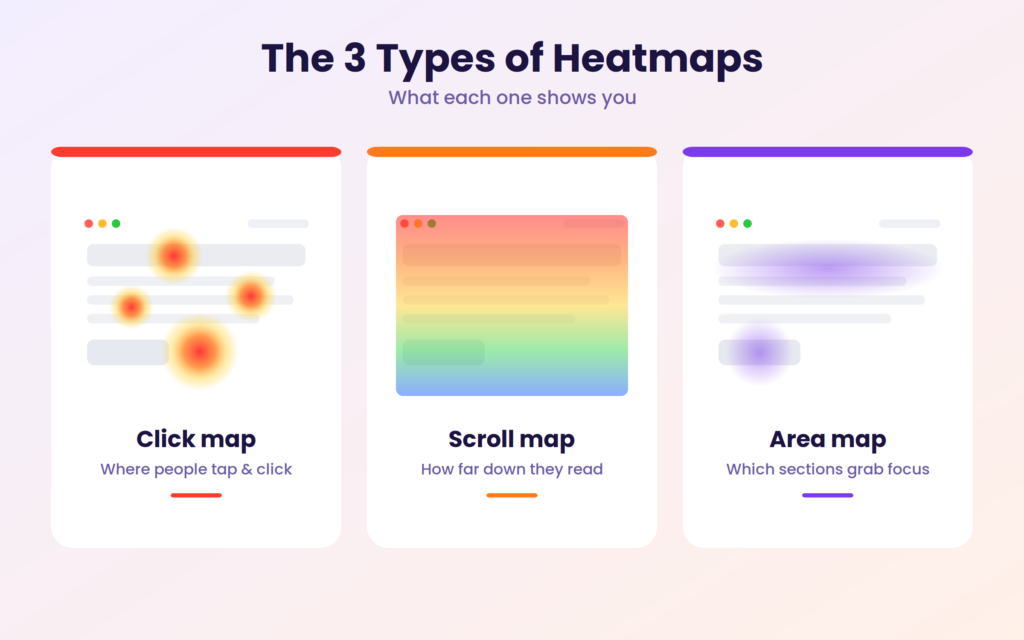
A heatmap is a colour-coded picture of how people interact with a page. Warm colours (red and orange) mean lots of activity; cooler colours mean very little. Clarity offers three handy types:
- Click maps: show exactly where people tap or click. You’ll quickly spot if visitors keep clicking something that isn’t even a link.
- Scroll maps: show how far down the page people actually go. If most visitors never reach your “Book Now” button, that’s a problem worth fixing.
- Area maps: show which sections of the page pull the most attention overall.
2. Session Recordings
Session recordings are like watching a replay of a real visit. You can see the mouse move, the scrolling, the hesitation, and the exact moment someone gives up. It feels a bit like sitting next to a customer while they use your site, incredibly eye-opening, and often a little humbling.
3. Frustration Signals & Insights
Clarity automatically flags moments of frustration, so you don’t have to hunt for them:
- Rage clicks: when someone clicks the same spot again and again out of pure annoyance.
- Dead clicks: when someone clicks something expecting it to work, and nothing happens.
- Quick backs: when a visitor opens a page and instantly bounces straight back.
- Excessive scrolling & JavaScript errors: signs that something is confusing or broken (and broken scripts can quietly hurt your page speed too).
These signals are gold. They point you straight to the weak spots that are costing you customers.
4. Funnels & User Paths
Want to know where people drop off in your checkout or enquiry form? Funnels show you the exact step where visitors leave. User paths reveal the routes people take through your site, perfect for spotting confusing navigation.
How to Set Up Microsoft Clarity (Step by Step)
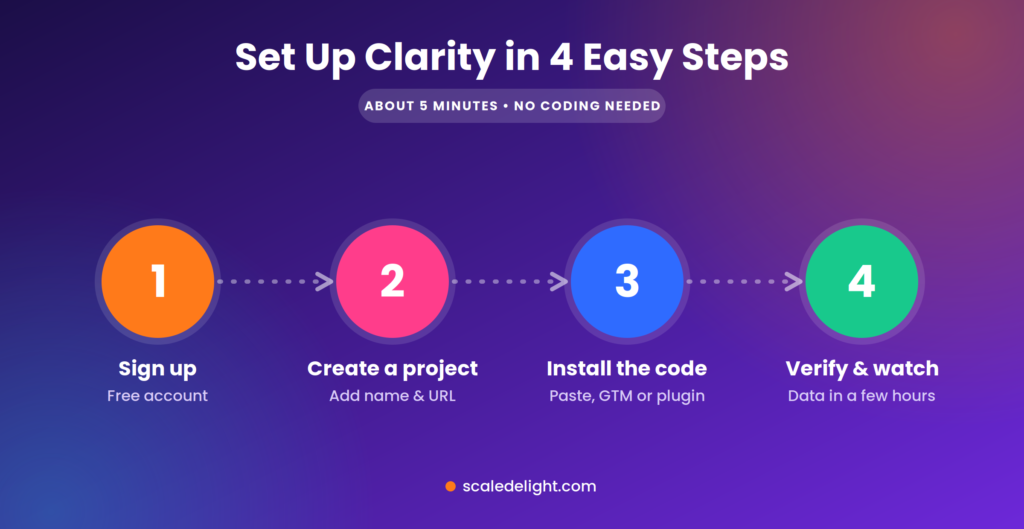
The good news: setup takes about 5–10 minutes and needs zero coding skills.
- Sign up. Go to clarity.microsoft.com and create a free account using your Microsoft or Google login.
- Create a project. Click “Add new project,” then enter your website’s name and URL.
- Install the tracking code. Clarity gives you a small code snippet. Add it in any of three easy ways: paste it into your site’s header, add it through Google Tag Manager, or use a ready-made plugin if you’re on WordPress, Shopify, or Wix.
- Verify and wait. Clarity confirms it’s receiving data. Give it a few hours, and your first recordings and heatmaps will start rolling in.
That’s it, no developer hours, no complicated dashboards to wrestle with.
What to Actually DO With the Data (Where the Magic Happens)
Collecting data is easy. The real value comes from acting on it. Here’s how smart marketers and business owners use Clarity every week:
- Watch your rage-click sessions first. They’re the fastest way to find a broken or confusing element. Fix it, and you often recover lost leads almost immediately.
- Audit your most important pages monthly. Run scroll maps on your home, service, and contact pages. If people aren’t reaching your call-to-action, move it higher up.
- Fix drop-offs in forms and checkout. Use funnels to find the exact step where people quit, then simplify it.
- Validate every redesign or A/B test. Don’t guess whether a new layout works: watch how real visitors respond to it.
This is exactly the kind of work that turns a “nice-looking” website into one that actually converts. If digging through data and turning it into more leads sounds like a lot, that’s where a dedicated conversion rate optimisation team earns its keep, and where issues like slow pages or broken buttons are best handled by experienced web development and technical SEO specialists.
Advanced Clarity: AI & 2026 Features
Clarity has grown far beyond simple heatmaps. Here are the advanced features worth knowing about:
- Clarity Copilot (AI insights). Instead of watching dozens of recordings, Copilot reads them for you and writes a plain-English summary of what’s going wrong. You can even ask it questions about your data and get answers pulled straight from your own site.
- AI visibility. In 2026, your visitors aren’t only human. Clarity can now show you how AI tools like ChatGPT, Copilot, and Gemini crawl and read your content, increasingly important as more people discover brands through AI assistants.
- Two-way Google Analytics integration. Connect Clarity with GA4 to jump straight from a report into the matching session recordings, and to see traffic sources and UTM data right inside Clarity.
- Mobile app tracking. Clarity isn’t just for websites: it offers an SDK to record behaviour inside mobile apps too.
Together, these tools let you move faster and make decisions based on what users actually do, instead of guesswork.
Privacy & Best Practices
Because Clarity records behaviour, privacy matters, and Microsoft has built it in. Clarity automatically masks text inputs and sensitive information by default, and it’s designed to be GDPR and CCPA ready. If you run a healthcare, finance, or any data-sensitive website, double-check your masking settings before going live and make sure you collect proper cookie consent. A few minutes of setup here keeps you safe and compliant.
From Data to Real Growth
Here’s the honest truth: Microsoft Clarity will happily show you every problem on your website, but it won’t fix them for you. The insights are only as valuable as the action you take next.
That’s where Scale Delight comes in. As a Mumbai-based digital marketing agency, our team turns Clarity’s findings into real results: plugging the leaks, rebuilding the weak pages, and optimising every step so more of your visitors become customers. From SEO and landing page development to full-funnel conversion rate optimisation, we help your website pull its weight.
Conclusion
Microsoft Clarity is one of those rare tools that’s powerful, beginner-friendly, and 100% free. It takes the guesswork out of running a website by showing you exactly what your visitors experience. Install it today, watch a few sessions this week, and you’ll likely spot at least one quick fix that improves your results.
And when you’re ready to turn those insights into serious growth, Scale Delight is just a message away.
Ready to turn insights into conversions? Our team reads your Clarity data for you and fixes what’s quietly costing you leads. Get in touch with Scale Delight for a free consultation, and let’s make your website work as hard as you do. |
FAQs
Q1. Is Microsoft Clarity really free?
Yes, completely. There are no paid plans, traffic limits, or hidden upgrades: every feature is free for everyone.
Q2. Is Clarity better than Google Analytics?
Neither is “better”: they do different jobs. GA4 tells you what happened; Clarity tells you why. Use both together for the best results.
Q3. Will Clarity slow down my website?
No. The tracking script loads in the background (asynchronously) and is built to be lightweight, so the impact on speed is minimal.
Q4. Is Microsoft Clarity safe and GDPR compliant?
Yes. Clarity masks sensitive inputs by default and is GDPR and CCPA ready, as long as you set up cookie consent properly.
Q5. How long does Clarity keep my data?
Session recordings are typically available for around 90 days, and heatmaps can be built from any period within that window.